
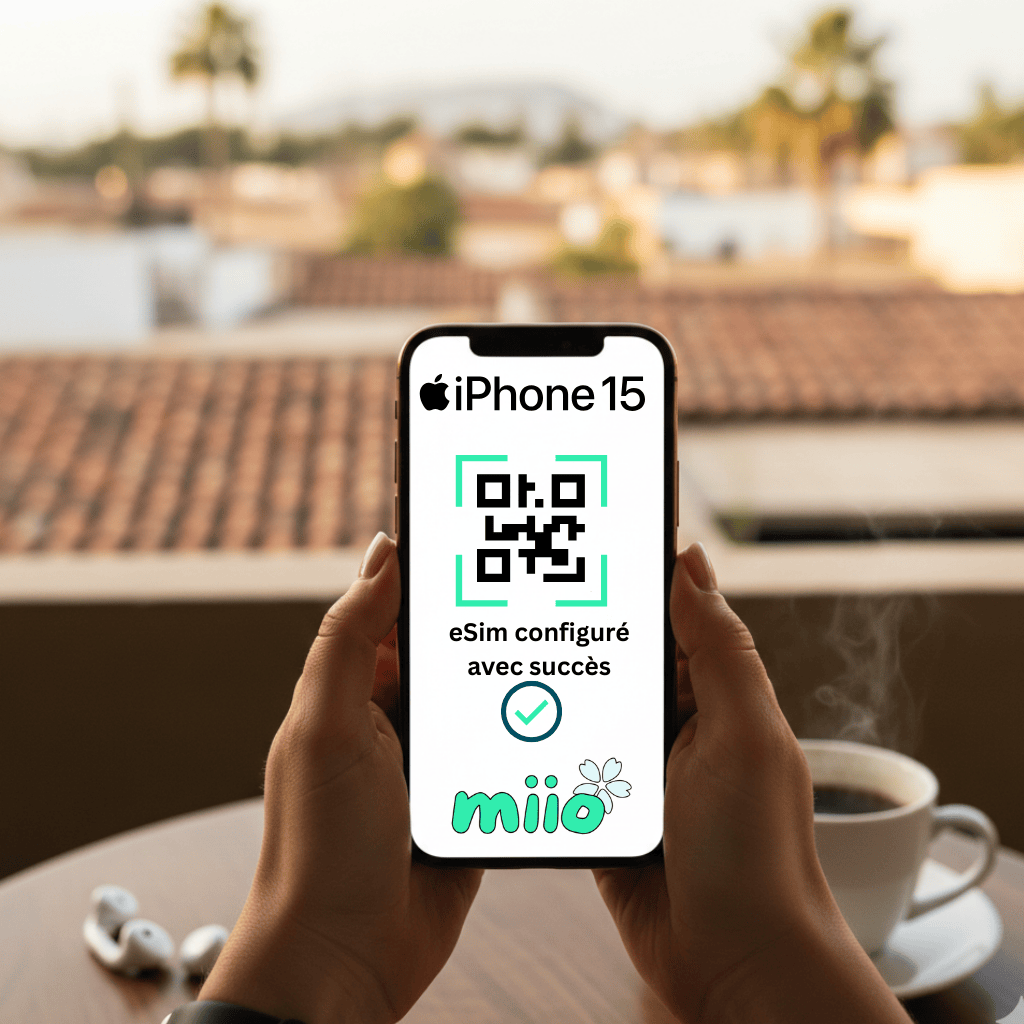
Activating an eSIM on an iPhone is a quick process that takes only two minutes. Whether you've just bought a travel eSIM package Whether you are switching operators or not, this step-by-step guide explains how to install your virtual SIM card and avoid the most common configuration errors.
1. Prerequisites before installing your eSIM on iPhone
Before starting the activation process, make sure you meet the following three conditions:
- An unlocked (SIM-unlocked) iPhone: Your phone must be unlocked for all carriers. If you bought it from a carrier with a contract, check that they accept other SIM cards.
- A stable Wi-Fi connection: To download the eSIM profile, your iPhone must be connected to Wi-Fi (at home or at the airport).
- The QR code or activation credentials: Obtain the QR code provided by your eSIM provider (displayed on another screen or printed).
2. Step-by-step instructions: Activate your eSIM via QR code
This is the simplest and most common method.
Step 1: Access the eSIM menu
- Open the Settings from your iPhone.
- Click on Cellular data (Or Cellular network).
- Press Add an eSIM (Or Add a cell phone plan).
Step 2: Scan the QR Code
- Choose the option Use a QR code.
- Scan the QR code provided with your iPhone camera.
- Press Continue Once the package is detected, then wait a few seconds while the profile is downloaded.
Step 3: Name your eSIM line
To avoid any confusion during your travels, assign a clear label to your new line:
- Main line: «" Staff "» Or «" Origin "».
- eSIM line: «" Journey "» Or «" Data "».
3. How to configure your eSIM for travel (Essential)
Once the eSIM is installed, it is important to properly configure your iPhone to avoid any extra charges on your main SIM card:
- Cellular data: In Settings > Cellular Data, select your Travel eSIM as the default line for the Internet connection.
- Automatic switching: Disable the option «"Allow cellular data switching"». This prevents your iPhone from using your French plan if the eSIM network weakens.
- Data roaming: Enable data roaming only on the eSIM Travel line (and check that it remains deactivated on your French SIM).
You don't have your plan yet? Discover our international eSIM packages for connected travel at the best price without changing your SIM card.
4. Troubleshooting common activation problems
«"The QR code is no longer valid."»
This message usually appears if you have already scanned the QR code once. The eSIM may already be registered on your iPhone. Go to Settings > Cellular Data and check if a second line appears.
«"Unable to activate the eSIM"»
If activation fails, check your Wi-Fi connection. If you are abroad, make sure you have enabled the option. Data roaming on the eSIM line.
Manual installation without QR code
If you cannot scan the QR code (for example, if you are reading the email on your iPhone):
- In the scan menu, press Enter the details manually at the bottom of the screen.
- Copy and paste the’Address SM-DP+ and the Activation code provided in your customer area.
FAQ: Everything you need to know about eSIM on iPhone
Which iPhone models are compatible with eSIM?
eSIM technology is supported on all iPhone models from the 1990 onwards.’iPhone XS, XS Max and XR (including iPhone 11, 12, 13, 14, 15 and later models).
Can you have multiple eSIMs on the same iPhone?
Yes. You can register up to 8 eSIMs (or more depending on the model) on your iPhone, but only two lines can be active simultaneously (Dual SIM configuration).
Would you like to know more about your phone's compatibility? Follow our 2-minute guide !