Travel and surf with peace of mind using your travel eSIM miio

Save your time and money

What is an eSIM?

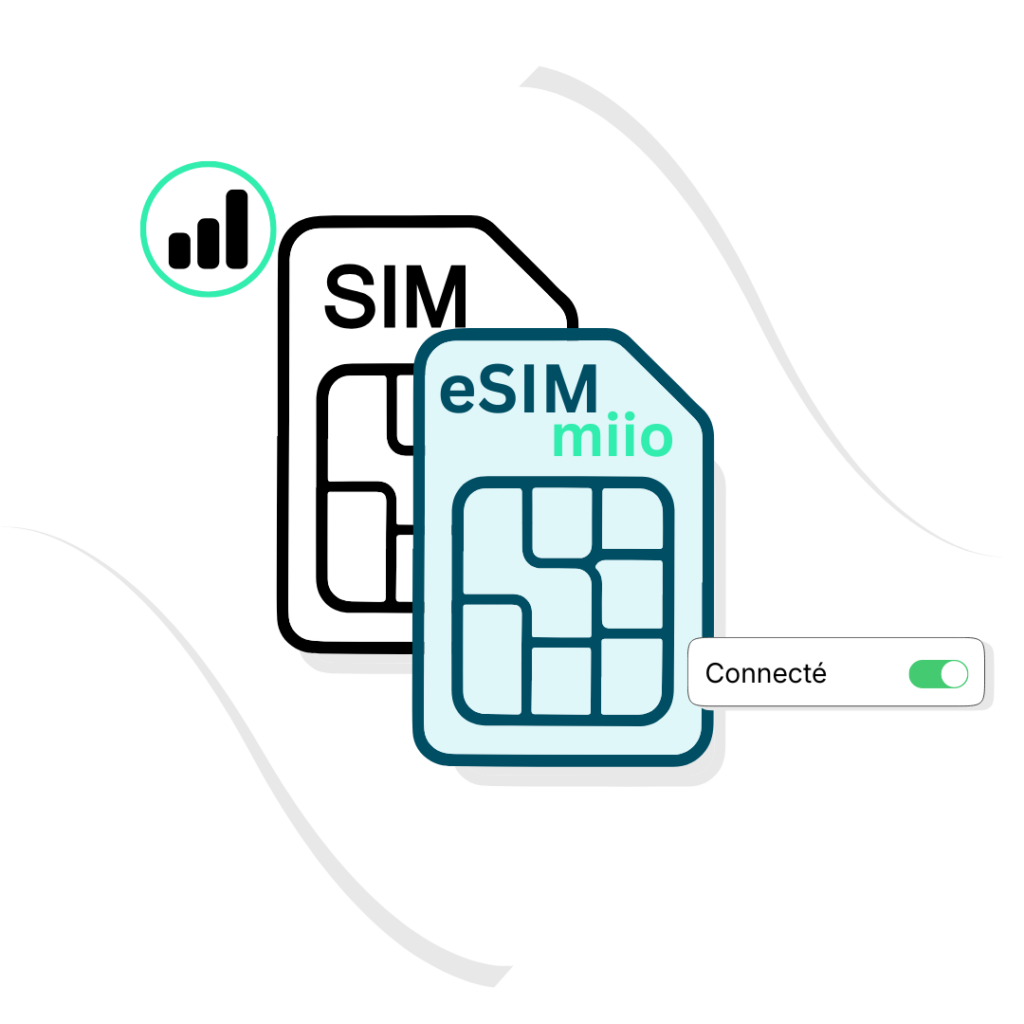
An eSim is the digital version of your regular SIM card.

No need to change your SIM card: everything happens inside your smartphone. It allows you to use multiple plans simultaneously.

Very useful when travelling abroad, it activates in 2 minutes. You benefit from a connection as soon as you arrive.

Choose your favorite destination

Choose a mobile data plan for your trip

Why choose miio?

Customized data plans

Choose the international data allowance that suits your trip. From weekend getaways to road trips, find the plan that's right for you.

No roaming charges

Take control of your budget. With eSIM, there are no roaming charges from your operator. You control your budget down to the last cent before you even take off.

Installation in 2 minutes

Select your plan, scan the QR code and follow the guide. In just a few clicks, your plan is ready to be activated.

Keep your number

Your Miio eSIM coexists with your regular phone line. You keep your contacts, access details, and confirmation SMS messages active.

Never alone, human assistance 7 days a week

We guide you step by step through the installation of your eSIM. Bonus: Our team is available 24/7.

Land, already connected!

We select the best local networks (4g/5g) to guarantee you the best speed as soon as you get off the plane.

How does it work? miio

3 quick and easy steps to make the most of your mobile data while traveling

Choose your data plan for your trip

Select your destination, your package and finalize your purchase.

Configure your eSIM

Scan the QR code and install the eSIM on your device. Your line is active from your first use at your destination.

Enjoy the internet

Enjoy your data, browsing, video calls... need a little extra? Top up your plan whenever you want.

Check your device's eSIM compatibility

The number of devices capable of handling eSIMs is growing rapidly. To find out if your device is compatible, consult our list of eSIM-compatible devices.

Frequently asked questions

An eSIM, or embedded SIM, is a digital SIM card that is embedded in a device's hardware rather than being a physical, removable card. Unlike physical SIM cards, which need to be inserted and removed from a device, eSIMs can be programmed and reprogrammed remotely, making it easier to switch between mobile carriers and plans. One of the main benefits of using an eSIM is that it makes it easier to switch between mobile carriers and plans, as you can download and install new eSIM profiles remotely. Additionally, eSIMs are more durable than physical SIM cards, as they cannot be lost or damaged in the same way. eSIMs also free up space in your device, as you don't need to have a physical SIM card slot.

Not all devices support eSIMs. However, an increasing number of smartphones, tablets, wearables, and other devices are now compatible with eSIM technology. You should check with your device manufacturer or mobile carrier to see if your device supports eSIMs. You can check if your device is compatible here

To add a new eSIM to your iOS device: Settings > Cellular > Add Cellular plan and then position the QR code in the frame >Scan the QR code and select ok. Once the eSIM is added to your device, please follow the instructions below to activate the eSIM plan in your iOS device settings and start using the data immediately.

  • Turn on your eSIM under Cellular/Mobile Plan.
  • If you want to use both your lines, turn on “Allow Cellular Data Switching” from Cellular/Mobile data menu. Meanwhile, if you want to use only eSIM, then turn it off to avoid charges on your other line.
  • Eable Data Roaming (Please turn off your primary line to avoid roaming charges from your carrier provider when overseas). You will not be charged with any extra payments by us with Data Roaming option On

If your device can't scan the eSIM QR code, you can manually add your account using the provided activation code (LPA). Settings > Cellular > Add Cellular plan > Choose “Enter Details Manually” (located under the scanner > Enter the following details:

  • SM DP + Address: XXX
  • Activation Code: YYY


The eSIM QR code is unique and can be installed only once. If you have lost or changed your device or removed the eSIM accidentally, you need to purchase a new one.


There are 3 ways to add an eSIM to your device (please note these steps may differ depending on your device):

Option 1 – By scanning the eSIM QR Code
To scan the QR Code and set up your eSIM, please follow these steps:

  • Go to your account to find your QR code
  • Scan your QR code and add the confirmation code if prompted
  • If necessary, go to Network & Internet and tap on the Mobile network to set the correct APN listed in the Additional Information which is at the bottom-right of the selected data package page.
  • Turn on eSIM under Mobile Network
  • Eable Mobile Data
  • Eable Data Roaming (Please turn off your primary line to avoid roaming charges from your carrier provider when overseas)

If you still don't have connectivity, please check your APN (access point name) settings, probably your APN was not set automatically. You can set the APN manually, please find the APN details in your account > eSIM lines>More information

Option 2 – manually change APN settings on an Android mobile phone

  • From the home screen, tap the Menu button.
  • In the phone configuration, select “Wireless and network.”
  • Tap the “Mobile Networks” option.
  • Scroll down and tap on “Access point name or APN.”
  • Tap on the three-dot menu in the upper right corner of the screen.
  • Tap on “New APN” and enter the APN details from your account > eSIM lines>More information.

Once it's done, click on the 'Save' option in the upper right corner of the screen.


Option 3 – By adding the eSIM manually
If you are experiencing issues scanning the QR code or are unable to scan the QR code, you can enter eSIM details manually. Please follow these steps:

  • Go to your account to find your QR code
  • Go to Settings on your device
  • Tap on Network & Internet
  • Tap the Add icon next to Mobile Network
  • Tap Next when asked, “Don’t have a SIM card?”
  • Tap Enter Code Manually. You will be asked to enter your SM-DP+Address in the following format: LPA:1$SMDP+ADDRESS$ACTIVATIONCODE
  • Turn on your eSIM under Mobile Network
  • Eable Mobile data
  • Eable Data Roaming (Please turn off your primary line to avoid roaming charges from your carrier provider when overseas)
  • If you still don't have connectivity, please check your APN (access point names) settings, probably your APN was not set automatically. You can set the APN manually, please find the APN details in your account > eSIM lines > More information

The eSIM QR code is unique and can be installed only once. If you have lost or changed your device or removed the eSIM accidentally, you need to purchase a new one.


The process for activating an eSIM may vary depending on your device and mobile carrier. You'll need to scan a QR code or enter an activation code provided by your carrier, which will allow your device to download and install the eSIM profile. You may also need to configure your device's network settings to enable eSIM usage.
Yes, an internet connection is required to download and install an eSIM profile onto your device. Once installed, you can use the eSIM to make and receive calls, send and receive texts, and use data, just like a physical SIM card.